Create a mind map
Put a topic in the center and grow ideas from it. New mind maps start from the input field on Home.
- 1On Home, type a topic under “What’s on your mind?” and tap →. A mind map opens with your topic as the center node. You can also speak instead of typing (uses AI).
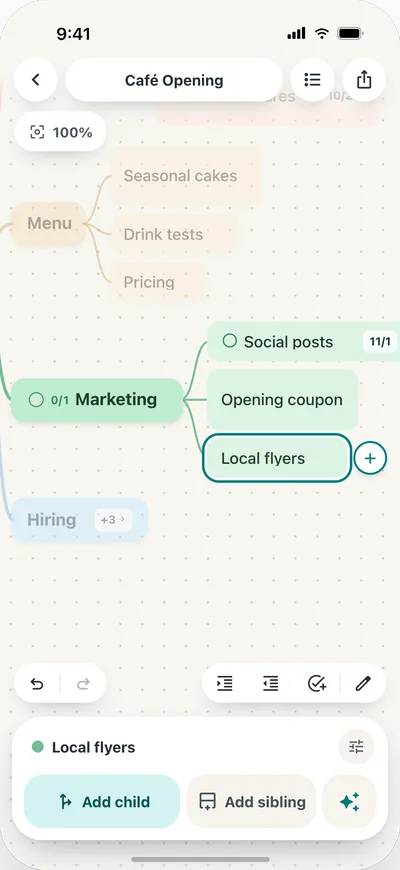
- 2Tap the + button next to a node to keep adding new ideas.
Add and move nodes
Select a node to see actions at the bottom of the screen.
Write with return and indent
While typing, you can add items with just the keyboard.
Long-press menu
Long-press a node to see what you can do with it.
Undo and redo
Undo your last action, or redo one you undid.
Zoom
Pinch with two fingers to zoom in and out.
Outline and side by side
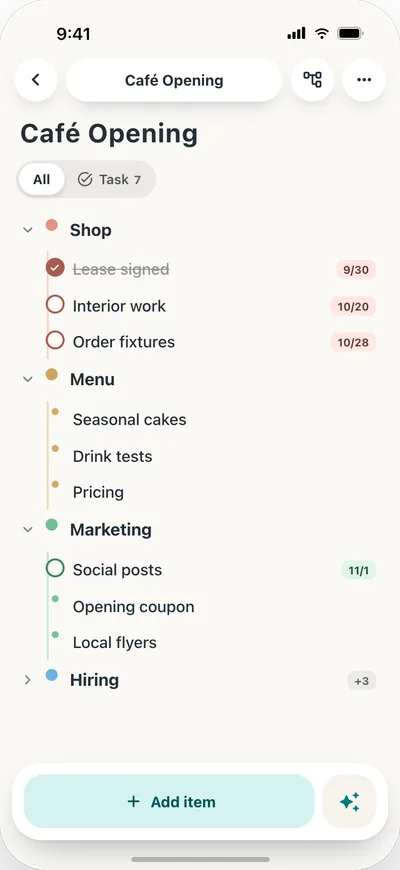
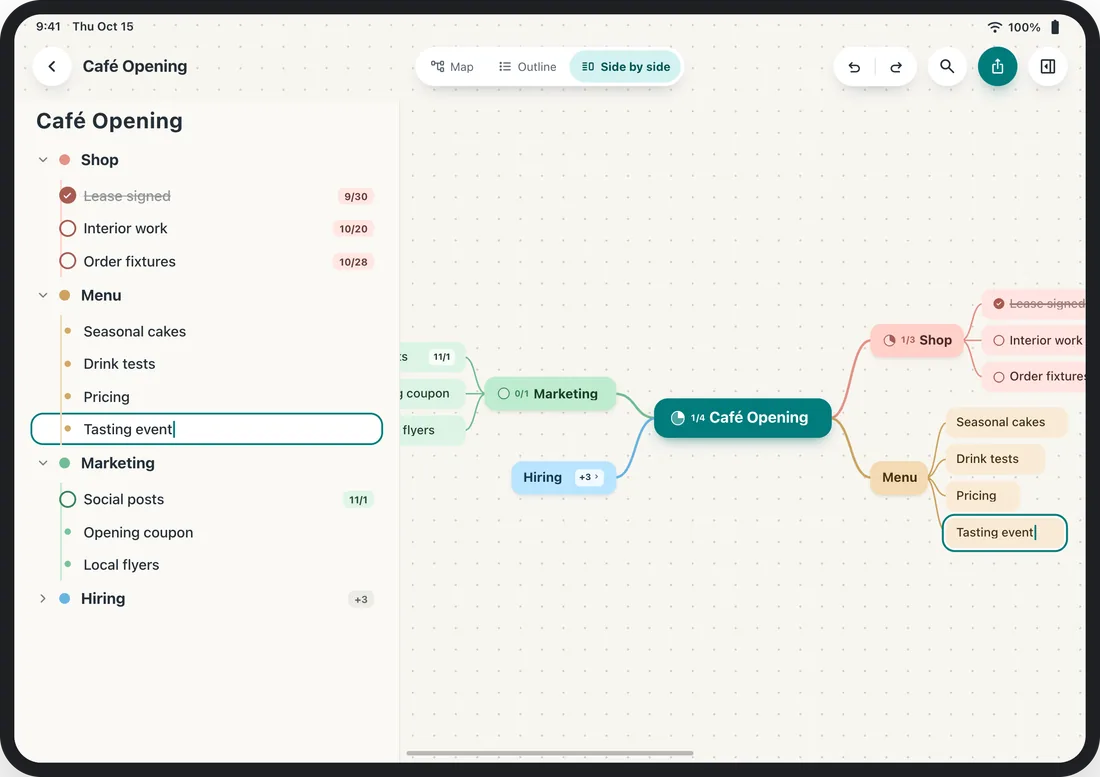
Edit the same content as an outline.
- 1Switch with the outline button at the top of the screen.
- 2Tap “Add Item” to add a line, and indent to change its level.
- 3On iPad, choose “Side by Side” to edit the mind map and outline at the same time.
Add by voice
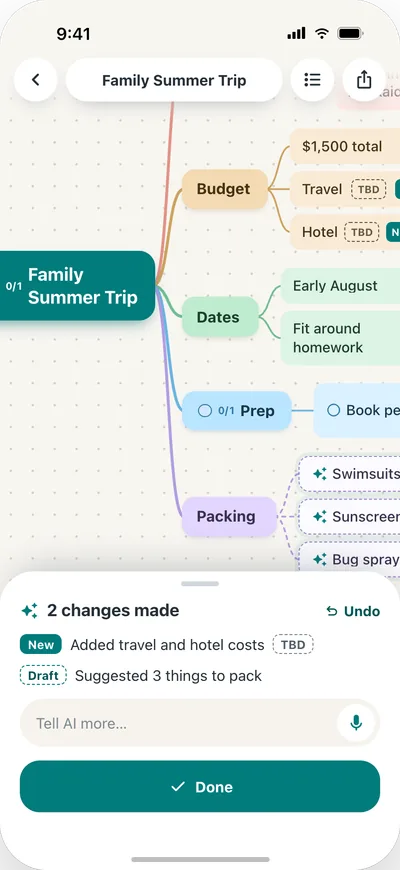
With “Instruct by Text or Voice” in the editor, AI splits what you write or say into nodes and adds them to the open mind map. To create a new mind map from speech, use the microphone in the Home input field (Create a mind map).
- 1Tap ✦ at the bottom of the screen and choose “Instruct by Text or Voice” (on iPad, ✦ in the toolbar).
- 2Write whatever comes to mind, or tap the microphone and say it.
- 3Check the changes and tap “Done”. To revert, tap “Undo”.
AI suggestions
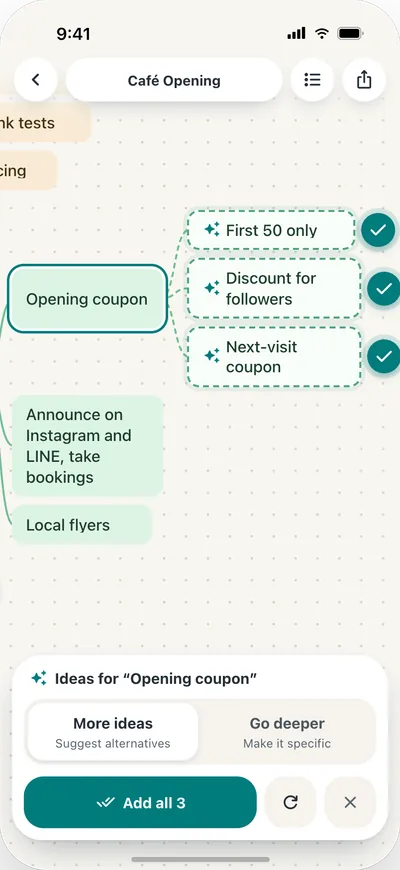
AI suggests ideas that follow from the node you pick.
- 1Select a node and tap ✦ at the bottom of the screen (on iPad, ✦ in the toolbar).
- 2Choose “More Ideas”, then pick a direction: “Broaden”, “Deepen”, or “Opposite view”.
- 3Tap + on a suggestion to add it, or “Add all 3” to add them all.
AI tidy-up
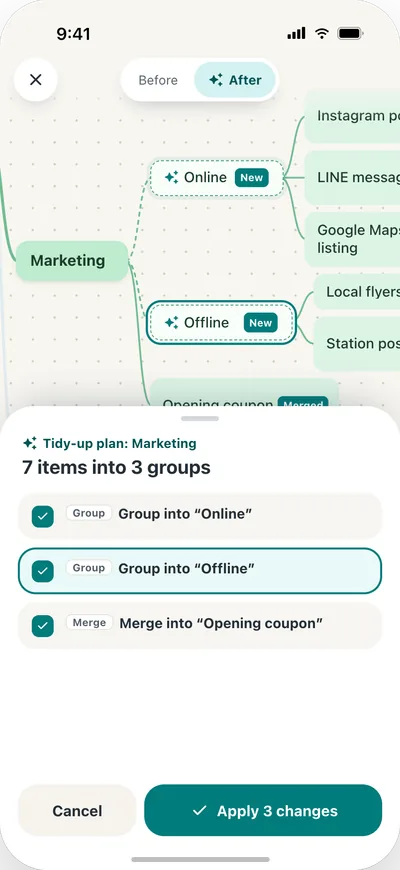
AI suggests how to group items and merge duplicates.
- 1Select the node to tidy, then choose Tidy up from ✦ at the bottom of the screen.
- 2Switch between “Before” and “After” to compare.
- 3Check the changes you want and tap “Apply”.
AI summary
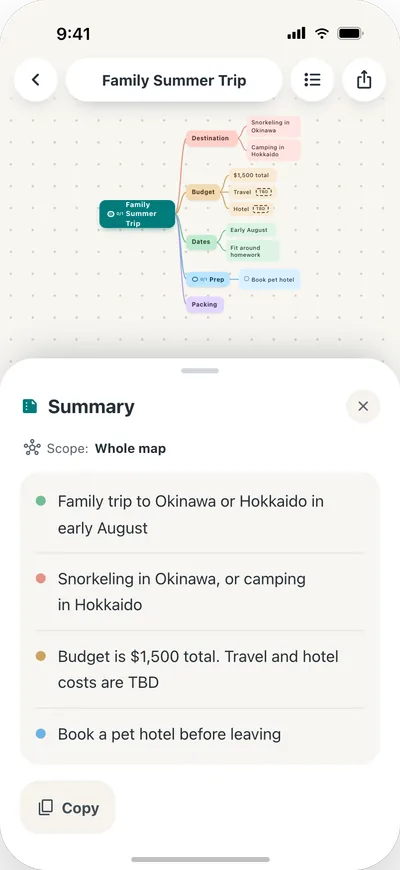
AI sums up your whole mind map in a short summary.
- 1Choose Summary from ✦ at the bottom of the screen.
- 2Tap “Copy” to paste it into another app.
Export
Export your mind map to other formats from the share button.
iCloud sync
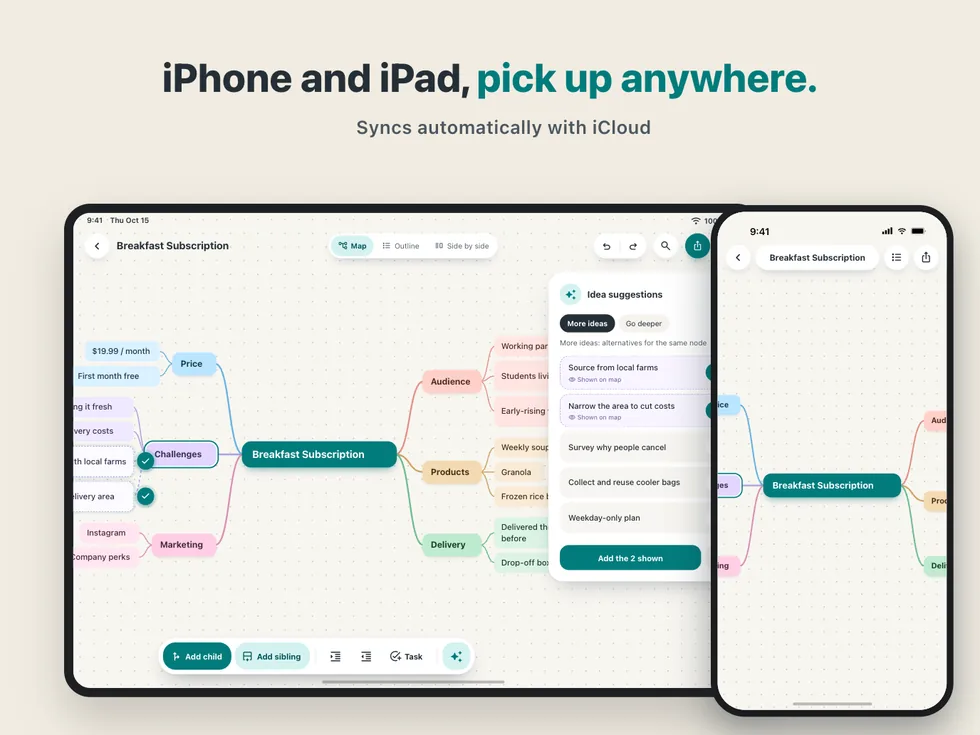
With Premium, turn on iCloud sync in Settings under “Storage & Sync”. Your mind maps then sync automatically between an iPhone and iPad signed in with the same Apple Account.
Import and Recently Deleted
Import files from other apps, or bring back mind maps you deleted.
Using iPad
On the larger iPad screen, parts of the UI are different.
- Adding a node with return or tab puts you straight into typing.
- No shortcuts work while a sheet, long-press menu, AI panel, or voice input is open, or in outline view.
AI settings
Turn AI features on or off with “Use AI” in Settings.